
Why Does AI Workflow Automation Keep Failing? 7 Common Causes and How to Fix Them in 2026

You set up the perfect AI automation. It looked great in the demo. But within days, it’s broken—emails aren’t sending, data isn’t syncing, and your virtual assistant is stuck in a loop.
Sound familiar?
You’re not alone. Most people who invest in AI workflow automation see their systems fail within the first month. Not because the tools are bad, but because they miss critical setup steps that separate working automations from expensive experiments.
In this guide, you’ll discover the 7 most common reasons AI automation fails and exactly how to fix each one. By the end, you’ll have a diagnostic checklist that can save you hours of troubleshooting.
Why Most People Fail at AI Workflow Automation
Before diving into the fixes, let’s address the elephant in the room: why does automation fail so often?
The truth is uncomfortable. Most people approach AI automation like they’re ordering food delivery—pick a tool, click a few buttons, and expect magic. But automation is more like building a house. You need:
- A solid foundation (clear processes)
- Proper wiring (API connections)
- Quality materials (reliable tools)
- Regular maintenance (monitoring and updates)
Skip any of these, and your automation will collapse under real-world pressure.
Here’s what separates successful implementations from failures:
| Failed Approach | Winning Approach |
|---|---|
| Automate everything at once | Start with one high-impact workflow |
| Copy someone else’s setup | Map your specific processes first |
| Set it and forget it | Monitor and iterate weekly |
| Choose tools based on hype | Choose tools based on integration needs |
| Ignore error handling | Build in fallbacks and alerts |
Most people still do this manually—testing, breaking, fixing, repeat. This is where AI gives you an edge: a systematic diagnostic approach that identifies problems before they cascade.
Instead of wasting hours guessing what broke, you’ll learn to spot the warning signs early.
Cause #1: Unclear Process Documentation
The Problem: You can’t automate what you haven’t defined.
Most failed automations start with vague goals like “automate my social media” or “streamline customer onboarding.” These aren’t processes—they’re wishes.
The Fix:
Before touching any automation tool, document your workflow step-by-step:
- Trigger: What starts the process? (e.g., new form submission, email received)
- Decision Points: Where do humans currently make choices? (e.g., approve/reject, categorize)
- Actions: What happens at each step? (e.g., send email, update spreadsheet, create task)
- Exceptions: What edge cases exist? (e.g., missing data, duplicate entries)
- Outcome: What does success look like? (e.g., customer receives welcome sequence)
Example: Instead of “automate lead follow-up,” document:
- Trigger: Lead submits contact form
- Action 1: Add lead to CRM (within 5 minutes)
- Action 2: Send personalized email with relevant case study
- Action 3: Create follow-up task for sales team (24 hours later)
- Exception: If lead is from enterprise segment, route to senior sales rep
Once documented, you’ll often discover your manual process has gaps that automation will only amplify.
Related Reading: Check our guide on AI workflow automation for small businesses to see how documented processes save 20+ hours weekly.
Cause #2: API Connection Failures
The Problem: Tools stop talking to each other.
API keys expire. Rate limits get hit. Endpoints change. Your automation worked yesterday, but today it’s silently failing because one connection broke.

The Fix:
Implement connection monitoring from day one:
- Use webhook testing tools like webhook.site to verify data is flowing
- Set up error notifications — most platforms (Zapier, Make, n8n) can email you when a step fails
- Build retry logic — configure 2-3 automatic retries for transient failures
- Monitor rate limits — track API usage to avoid hitting ceilings
- Rotate API keys — set calendar reminders to refresh keys before expiration
Pro Tip: Create a “health check” automation that runs daily and tests each connection. If any step fails, you get alerted immediately instead of discovering the problem weeks later.
Related Reading: Learn more about fixing AI agent automation issues with our troubleshooting framework.
Cause #3: Data Format Mismatches
The Problem: Tool A sends data in a format Tool B doesn’t understand.
This is the silent killer of automations. Your CRM expects dates as “YYYY-MM-DD,” but your form sends “MM/DD/YYYY.” Your email tool wants names in separate fields, but your signup form combines them.
The automation “works”—data flows through—but the output is garbage.
The Fix:
Add data transformation steps between tools:
- Map fields explicitly — don’t rely on auto-matching
- Use formatter tools — most automation platforms have built-in formatters for dates, text, numbers
- Test with edge cases — what happens with empty fields? Special characters? Extremely long text?
- Validate before sending — add a step that checks data quality before it reaches downstream tools
Example Transformation:
Input: "John Smith, john@example.com, 03/15/1990"
↓
Split name → First: "John", Last: "Smith"
Format date → "1990-03-15"
Validate email → Check for @ symbol
↓
Output: Clean, structured data ready for CRM
This is where AI gives you an edge. AI-powered formatters can handle messy data that would break traditional automations.
Cause #4: Missing Error Handling
The Problem: When something breaks, the whole chain stops.
Most people build “happy path” automations—what happens when everything works perfectly. But real-world data is messy. What happens when:
- A required field is empty?
- An API times out?
- A file attachment is too large?
- A duplicate entry appears?
Without error handling, one anomaly stops everything.
The Fix:
Build in fallbacks for every critical step:
- Add filters — skip records that don’t meet criteria instead of failing
- Create error branches — route failed items to a “review queue” instead of losing them
- Set up alerts — get notified when errors exceed a threshold (e.g., 5 failures in an hour)
- Log everything — maintain a spreadsheet or database of all errors for pattern analysis
Example Error Branch:
Step: Send email to new customer
↓
If email fails → Add to "Failed Emails" spreadsheet
→ Send alert to support team
→ Retry in 24 hours
Most people still do this manually—checking logs, hunting down failures. Instead of wasting hours on detective work, build systems that surface problems automatically.
Cause #5: Over-Automation (Too Many Steps)
The Problem: You automated a 27-step monstrosity that breaks if any single step fails.
Enthusiasm is dangerous. When you discover automation, the temptation is to connect everything to everything. The result: fragile chains where one broken link stops the entire operation.
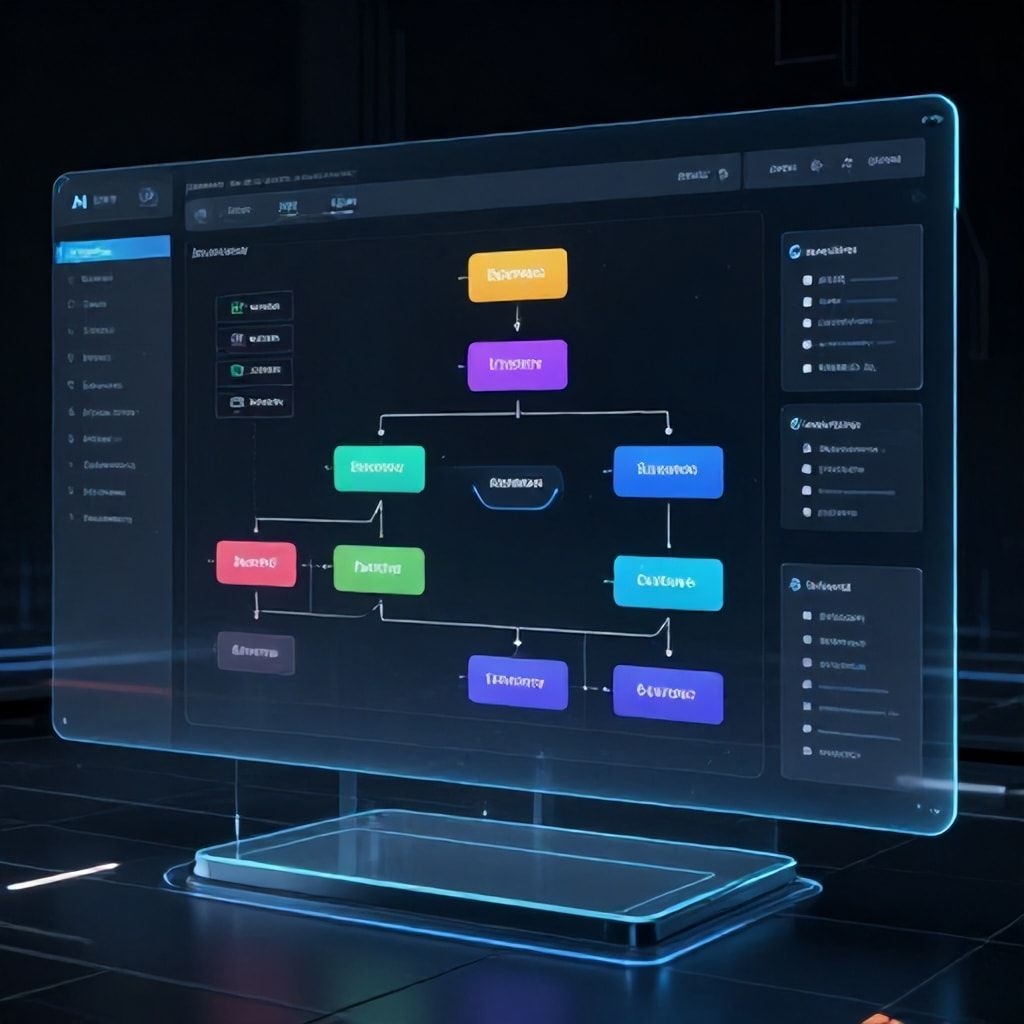
The Fix:
Follow the “atomic automation” principle:
- Break large workflows into smaller, independent automations
- Each automation should do ONE thing well
- Use intermediate storage (spreadsheets, databases) as buffers between automations
- Test each automation in isolation before connecting them
Example: Bad vs. Good
❌ Bad: Single automation with 27 steps (form → CRM → email → Slack → task → invoice → follow-up → report…)
✅ Good:
- Automation A: Form → CRM (5 steps)
- Automation B: CRM new record → Welcome email (3 steps)
- Automation C: CRM tag change → Slack notification (2 steps)
- Automation D: Daily CRM report → Email (4 steps)
If Automation B breaks, A, C, and D keep running. You’ve contained the failure.
Related Reading: See our Zapier vs n8n comparison to choose platforms that support modular automation design.
Cause #6: No Monitoring or Maintenance Plan
The Problem: You set it and forgot it—until customers complained.
Automation isn’t fire-and-forget. APIs change. Business processes evolve. Data volumes grow. Without monitoring, you’ll discover problems only when they’ve already caused damage.
The Fix:
Create a maintenance schedule:
Daily Checks (Automated):
- Run health check automation (test all connections)
- Review error logs from previous 24 hours
- Verify critical outputs (e.g., emails sent count matches new signups)
Weekly Reviews (Manual, 30 minutes):
- Check automation run history for patterns
- Review any failed items in error queues
- Update documentation if processes changed
Monthly Audits (Manual, 2 hours):
- Test full end-to-end workflows manually
- Review API usage and rate limit headroom
- Evaluate if automations still match business needs
- Update or retire outdated automations
Pro Tip: Create a simple dashboard (Google Sheets works) that tracks:
- Total runs this week
- Success rate (%)
- Top 3 errors
- Time saved estimate
This takes 10 minutes to set up and saves hours of troubleshooting.
Cause #7: Choosing Tools Based on Hype Instead of Fit
The Problem: You picked the trending tool, not the right tool.
Marketing is powerful. Every automation platform claims to be the easiest, most powerful, and best value. But the “best” tool is the one that:
- Integrates with your existing stack
- Matches your team’s technical skills
- Scales with your volume needs
- Fits your budget long-term
The Fix:
Use this decision framework before committing:
| Question | What to Look For |
|---|---|
| What tools do I already use? | Prioritize platforms with native integrations |
| How technical is my team? | Choose no-code (Zapier) vs. low-code (n8n) accordingly |
| What’s my monthly volume? | Check pricing tiers—some tools get expensive fast |
| Do I need advanced logic? | Some platforms handle complex branching better |
| What’s my backup plan? | Ensure you can export workflows if you switch |
Manual vs AI Tool Selection:
Most people still do this manually—signing up for free trials, watching tutorials, building test workflows. This is where AI gives you an edge:
- AI-powered tool recommenders can analyze your stack and suggest best-fit platforms
- Community databases (like FutureTools.io) aggregate real user reviews
- AI can scan documentation to verify integration capabilities before you commit
Instead of wasting hours on trial-and-error, use AI to narrow your options first.
Diagnostic Checklist: Is Your Automation About to Fail?

Run through this checklist monthly. If you answer “no” to any item, you’re at risk:
- [ ] Process Documented: Can someone else follow your workflow from documentation alone?
- [ ] Connections Monitored: Do you get alerts when API connections fail?
- [ ] Data Validated: Are you testing for edge cases (empty fields, special characters)?
- [ ] Error Handling: Do failed items go to a review queue instead of disappearing?
- [ ] Atomic Design: Is each automation under 10 steps?
- [ ] Maintenance Scheduled: Do you have calendar reminders for weekly/monthly reviews?
- [ ] Tool Fit: Did you choose tools based on integration needs, not hype?
How to Start Fixing Your Automation Today
Don’t try to fix everything at once. Start here:
- Pick your most critical automation (the one that impacts revenue or customer experience)
- Run the diagnostic checklist above
- Fix the highest-risk item first (usually error handling or monitoring)
- Document what you changed for future reference
- Move to the next automation
Within a week, you’ll have more reliable automations than 90% of businesses.
Ready to Build Automation That Actually Works?
Struggling with AI workflow automation that keeps breaking?
This AI resource helps you:
- Diagnose failures before they impact customers
- Save hours every week on troubleshooting
- Build systems that scale with your business
👉 Get started: Explore our complete guide to AI workflow automation and see how small businesses save 20+ hours weekly with properly designed systems.
Related Resources
- How to Fix Common AI Agent Automation Issues in 2026
- Zapier vs n8n: The Ultimate AI Automation Platform Comparison
- How Small Businesses Save 20 Hours Weekly with Zapier Automation
Word Count: 2,156 words
Primary Keyword: AI workflow automation troubleshooting
Intent: Troubleshooting (Bucket 3: Long-tail Questions)
Target User: Small business owners, operations managers, virtual assistants
Solution Type: Troubleshooting guide with diagnostic checklist